

Overview
Graphic Layout Calculator helps you build precise row-and-column layouts without repeatedly doing the math by hand. Enter the artboard size, grid structure, gutters, margins and optional cell padding; the app calculates the resulting cell size and usable content area and gives you a visual preview.
Units
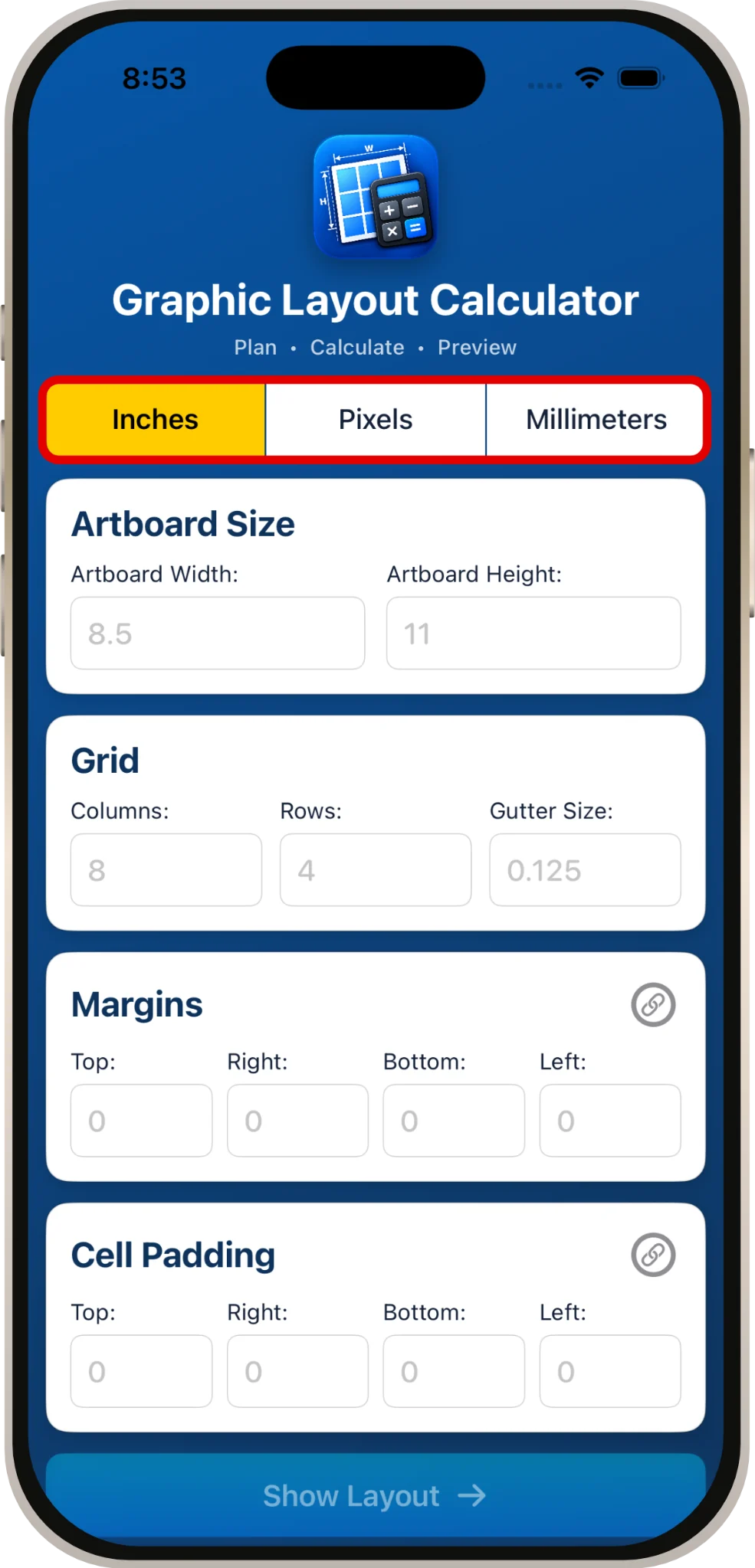
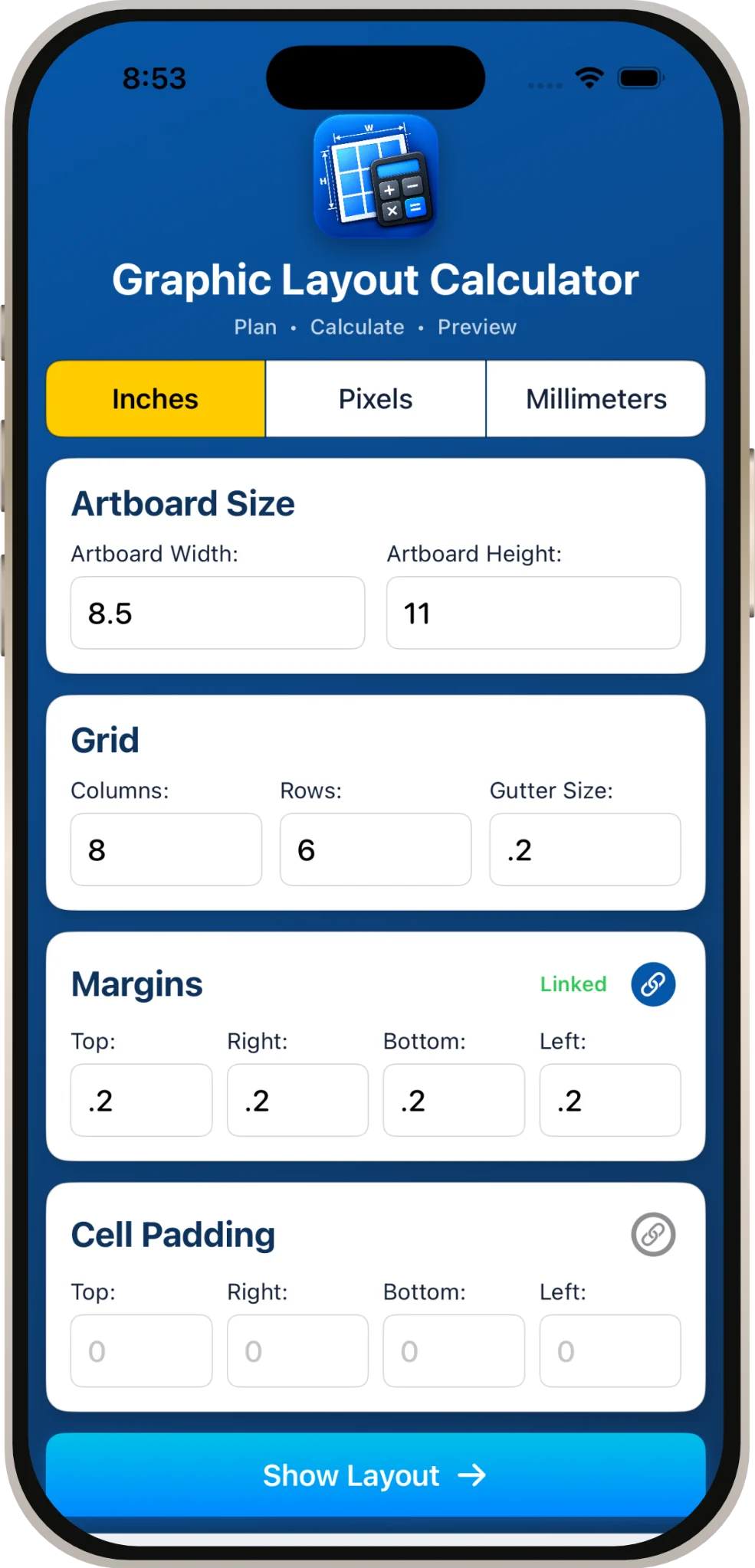
Choose Inches, Pixels or Millimeters. The example placeholders change with the selected unit, but placeholders are examples only; they are not entered values.
Artboard Size
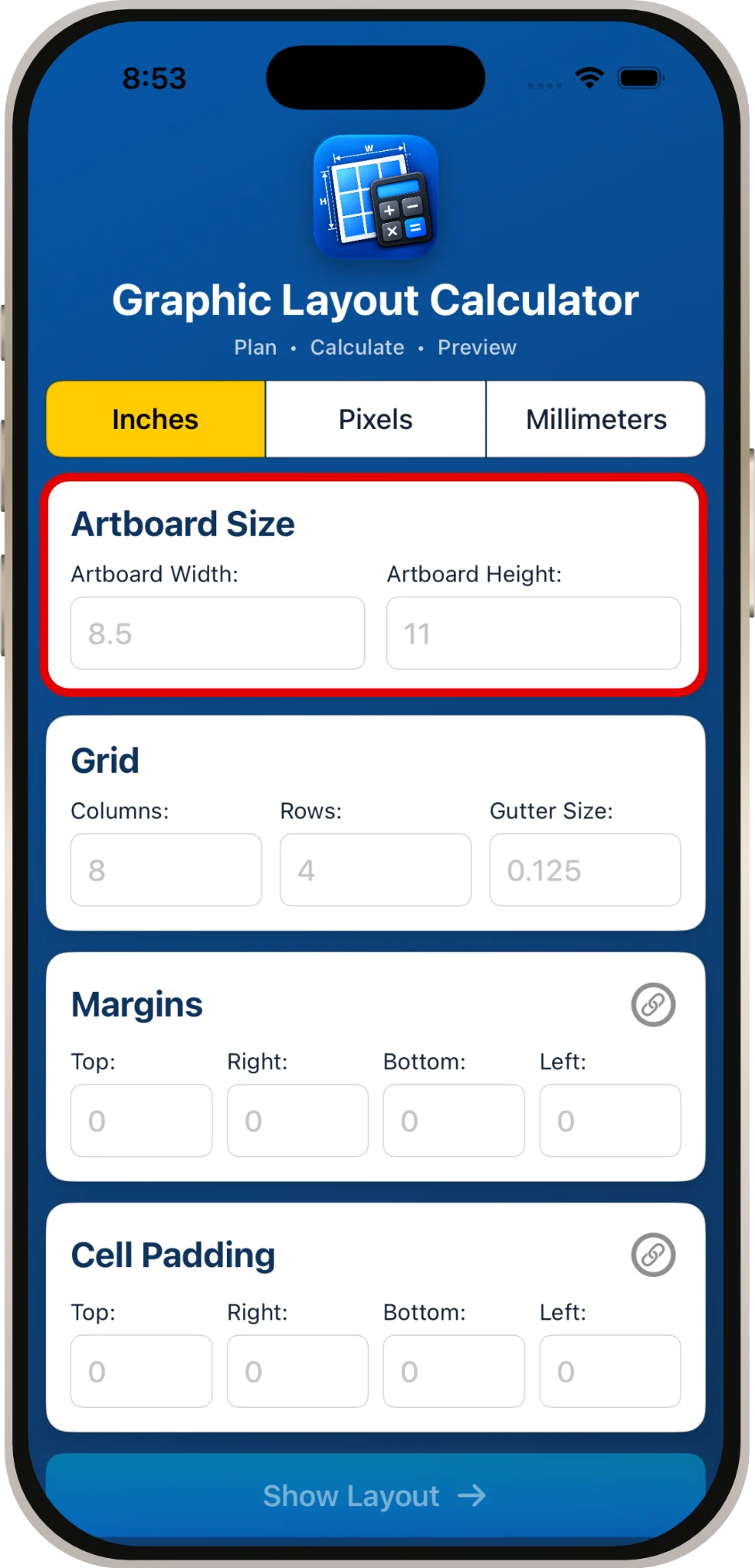
Enter the overall width and height of the layout. These dimensions define the outside size from which margins, gutters and cells are calculated.
Columns, Rows & Gutter
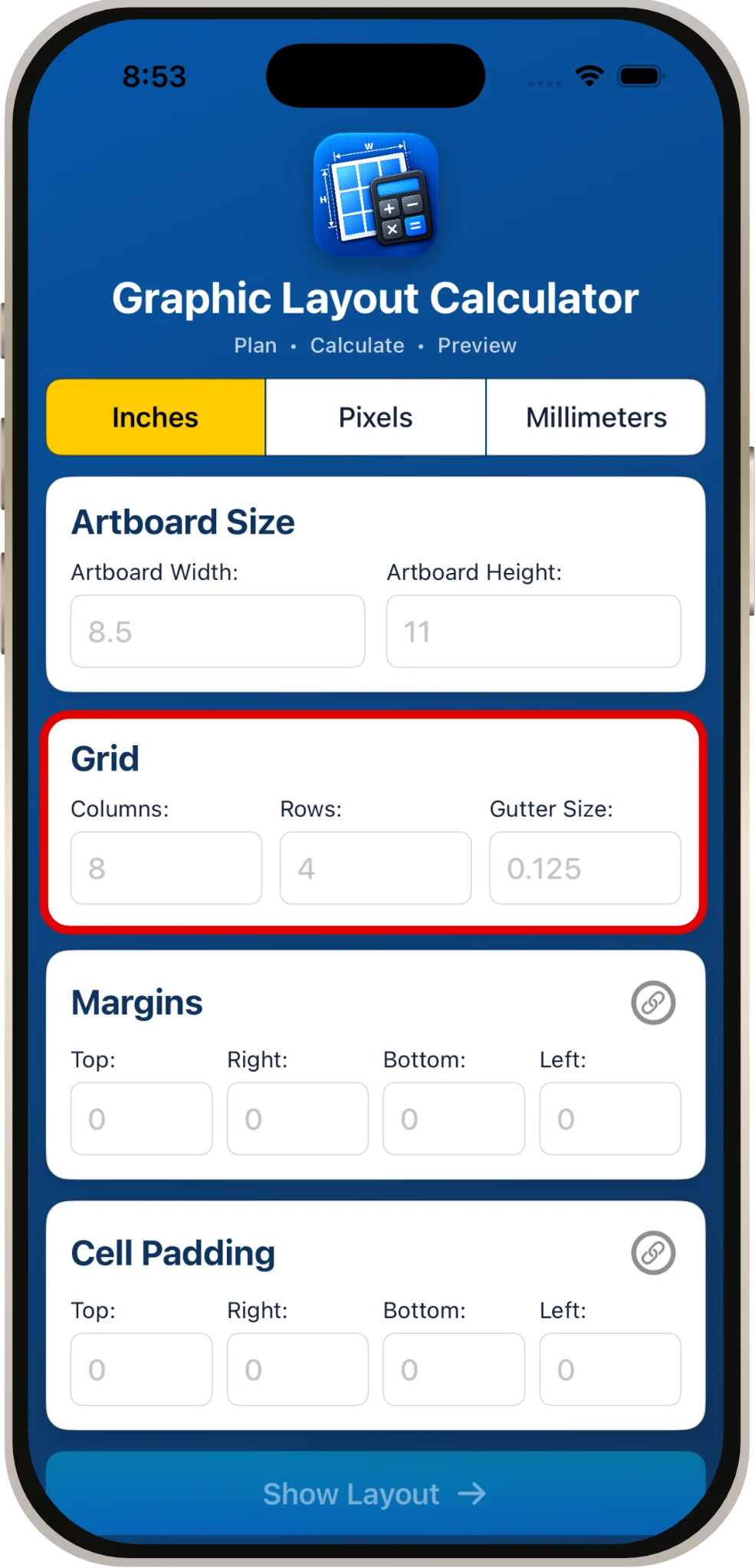
| Control | What it does |
|---|---|
| Columns | Sets the number of vertical grid divisions. |
| Rows | Sets the number of horizontal grid divisions. |
| Gutter Size | Sets the space between adjacent columns and rows. |
Margins
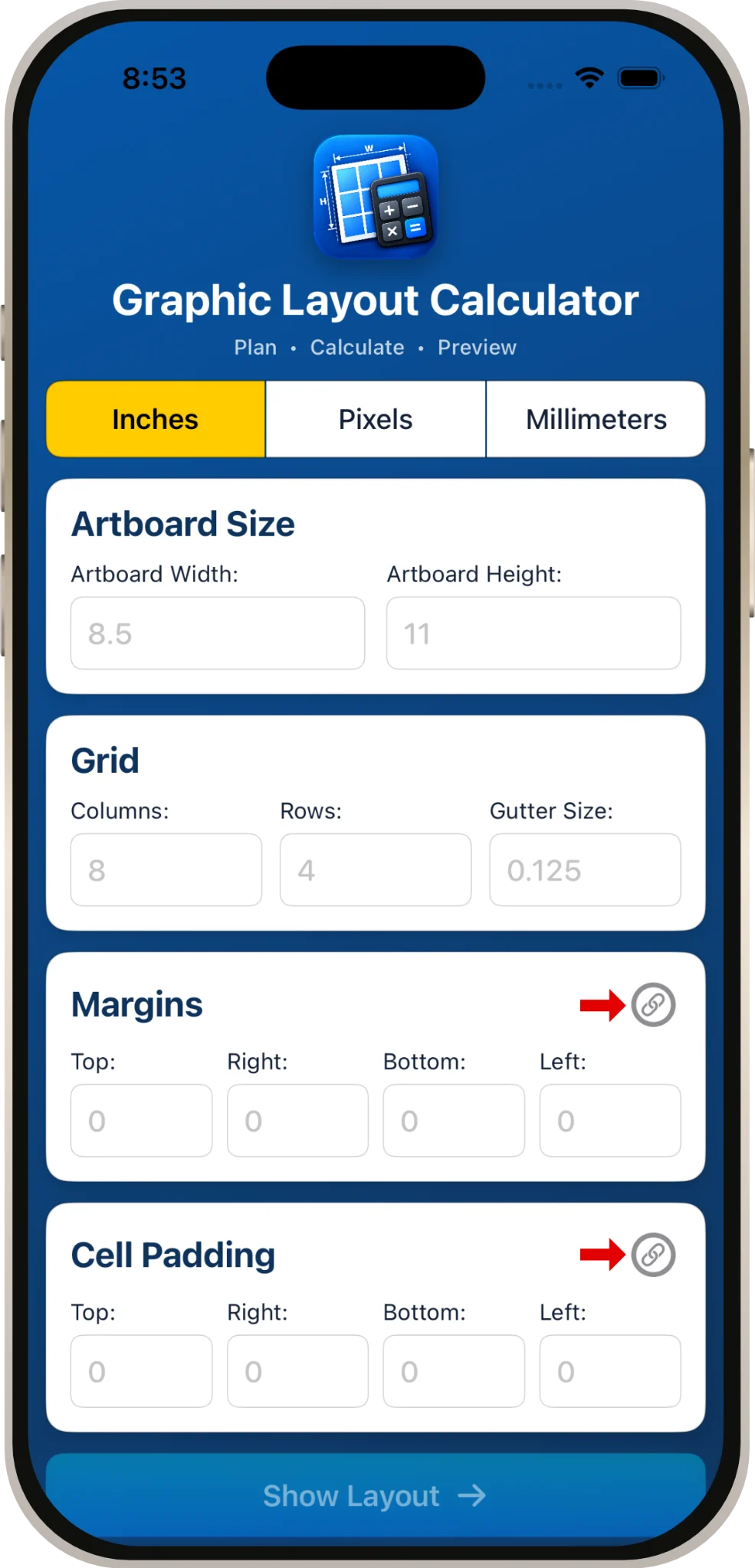
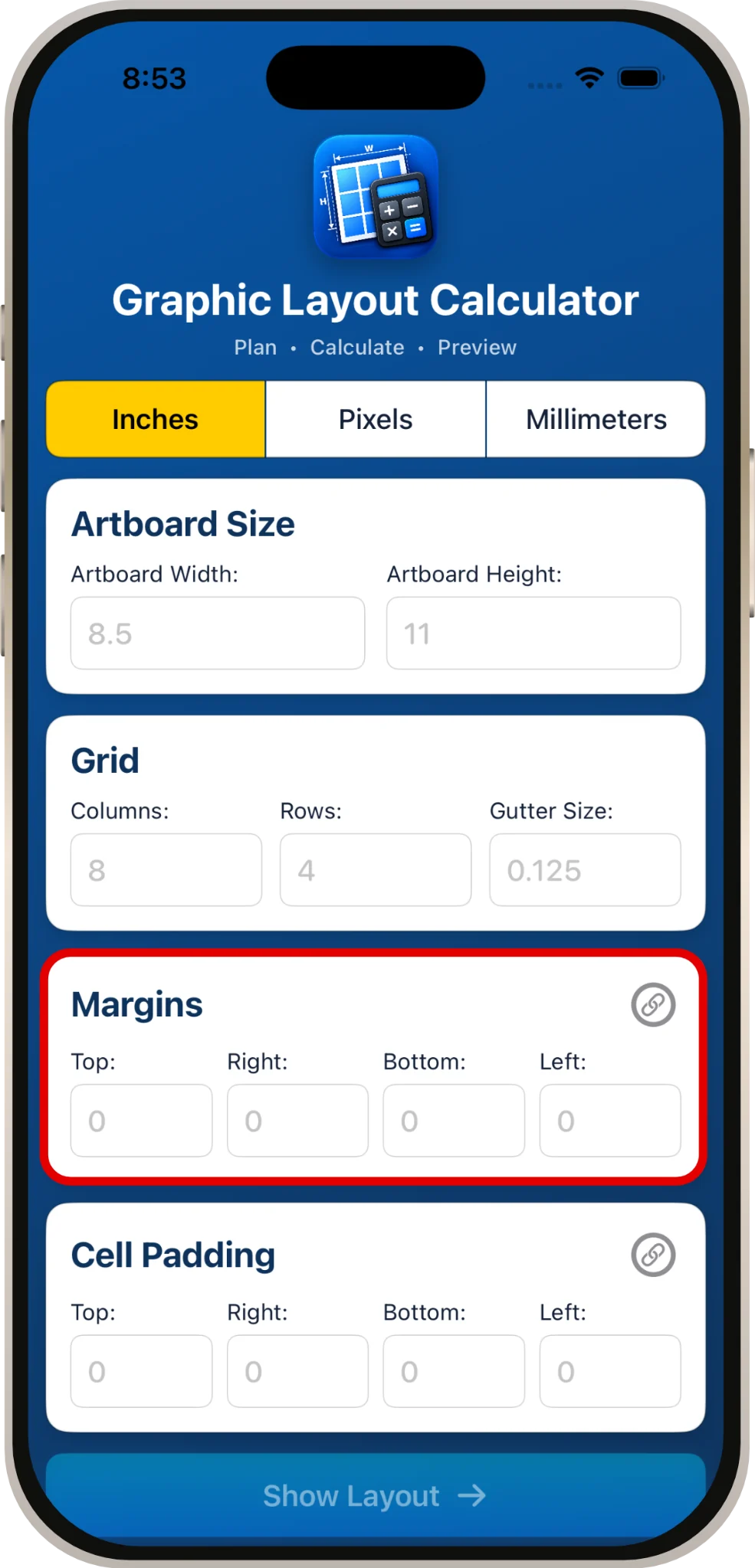
Margins create space between the outside edge of the artboard and the grid. Tap the link control to link the four fields; when linked, entering a value applies it equally to Top, Right, Bottom and Left. Unlink them when the sides need different values.
Cell Padding & Usable Content Area
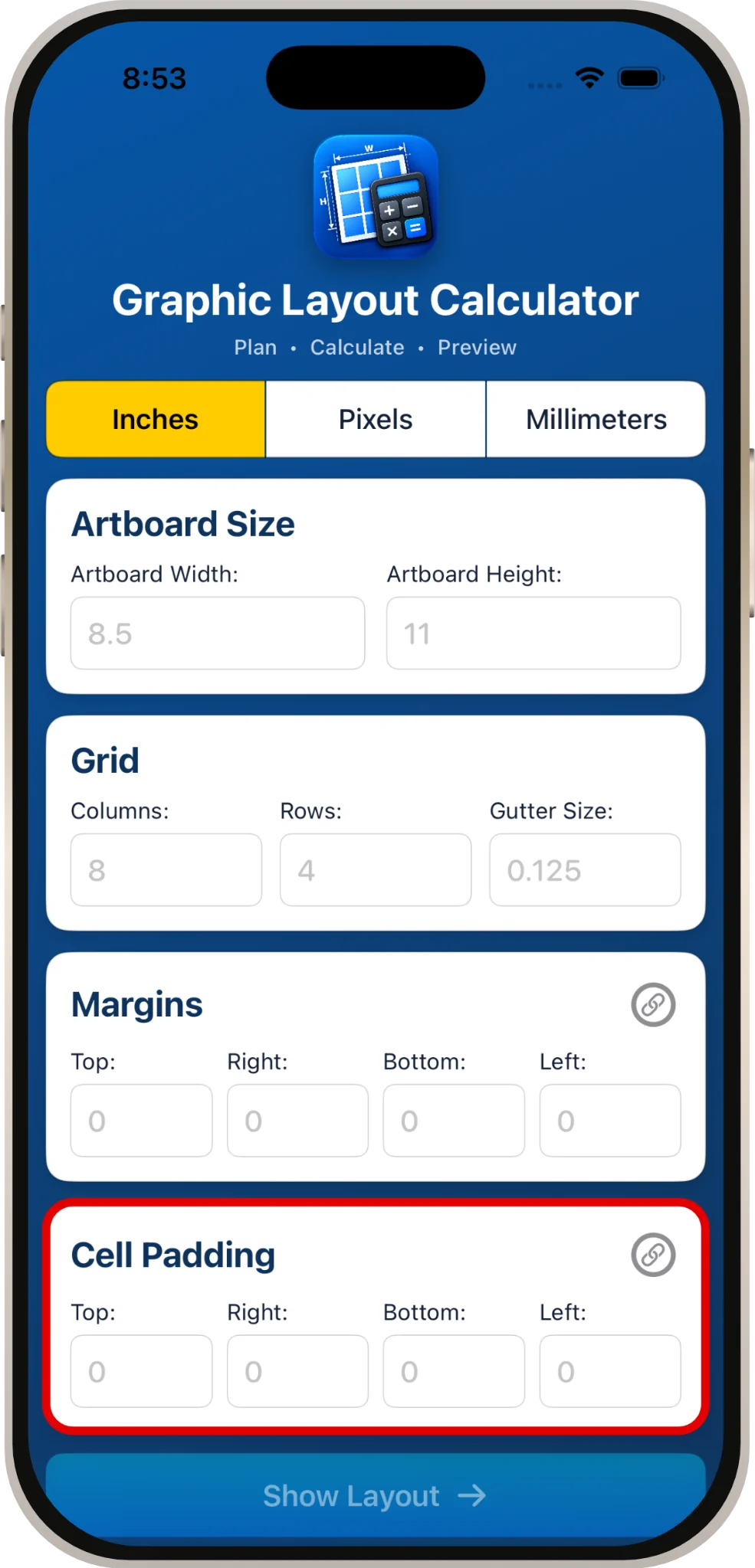
Cell Padding does not change the grid geometry. It represents an inset inside each calculated cell. The app therefore shows both the full Cell Size and the smaller Usable Content Area. Like Margins, Cell Padding can be linked or entered independently for each side.
Show Layout & Preview
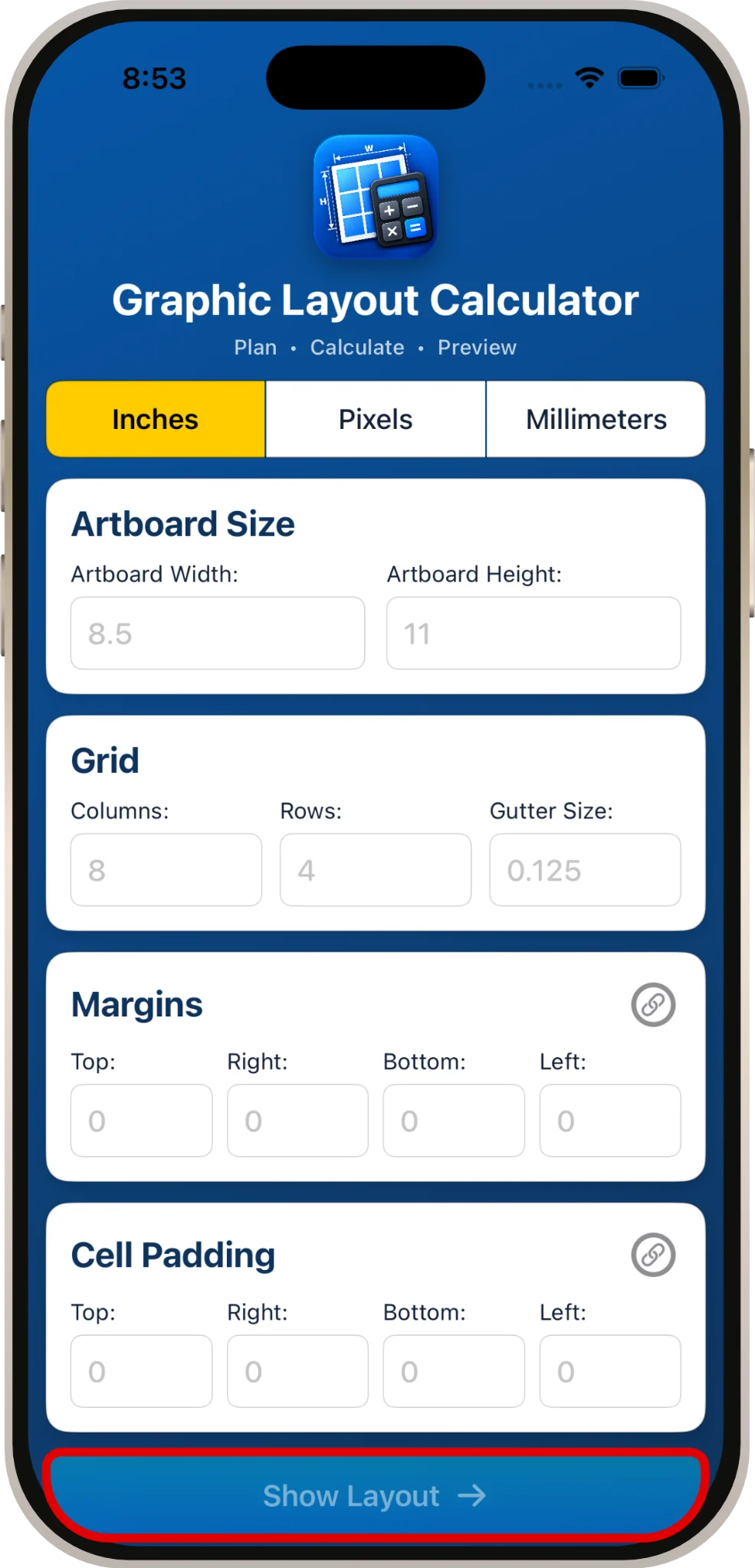
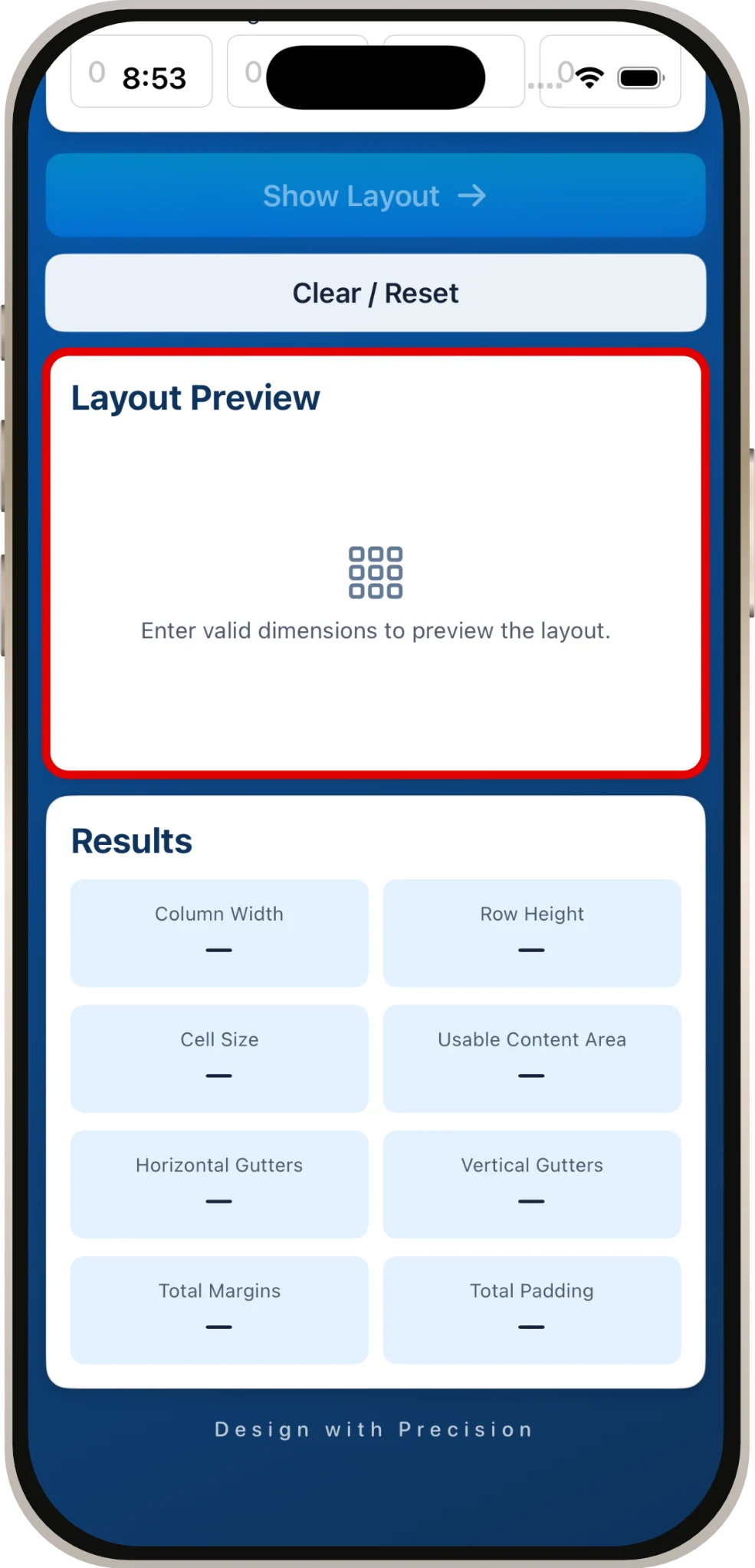
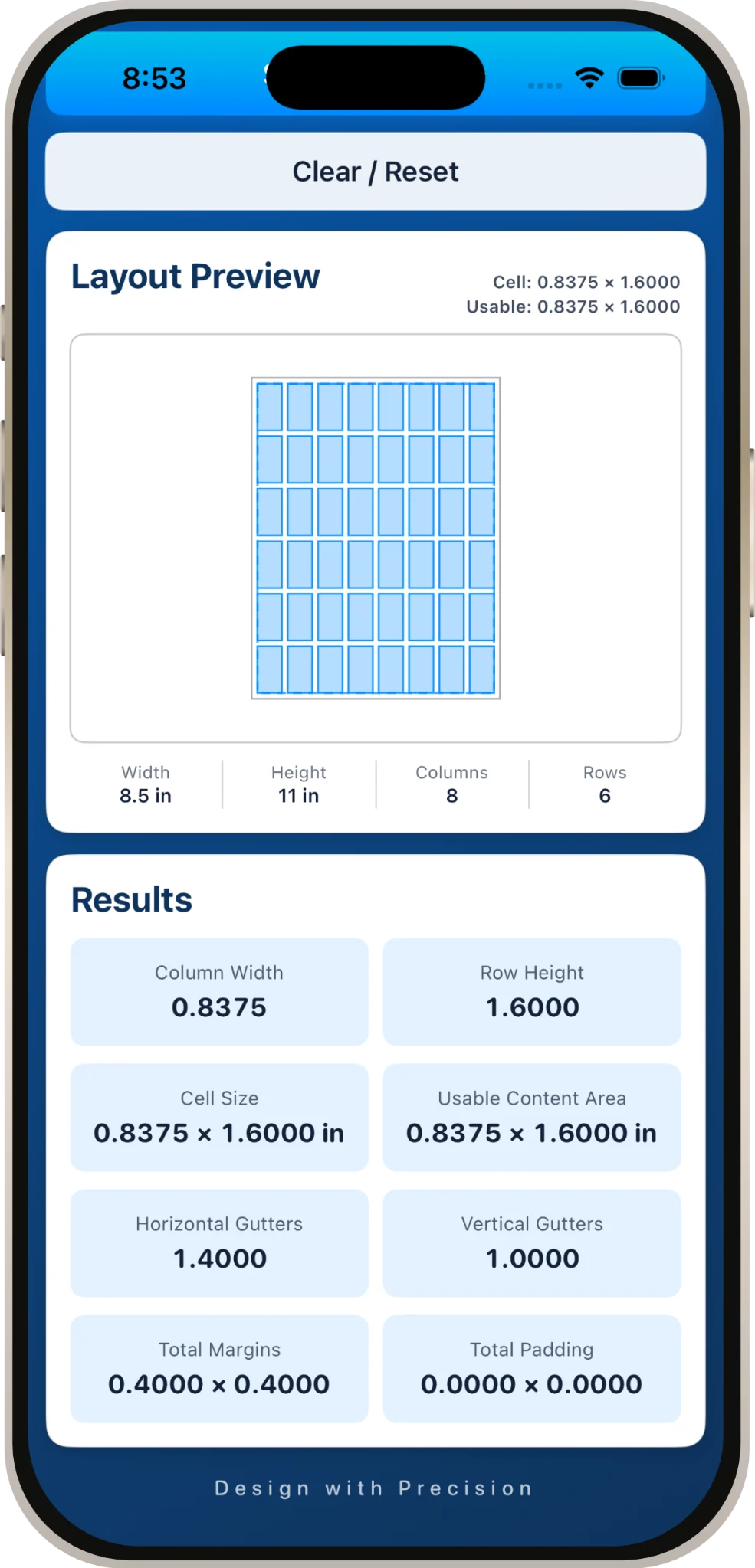
After entering valid dimensions, tap Show Layout. The calculator creates the layout preview and updates the calculated results.
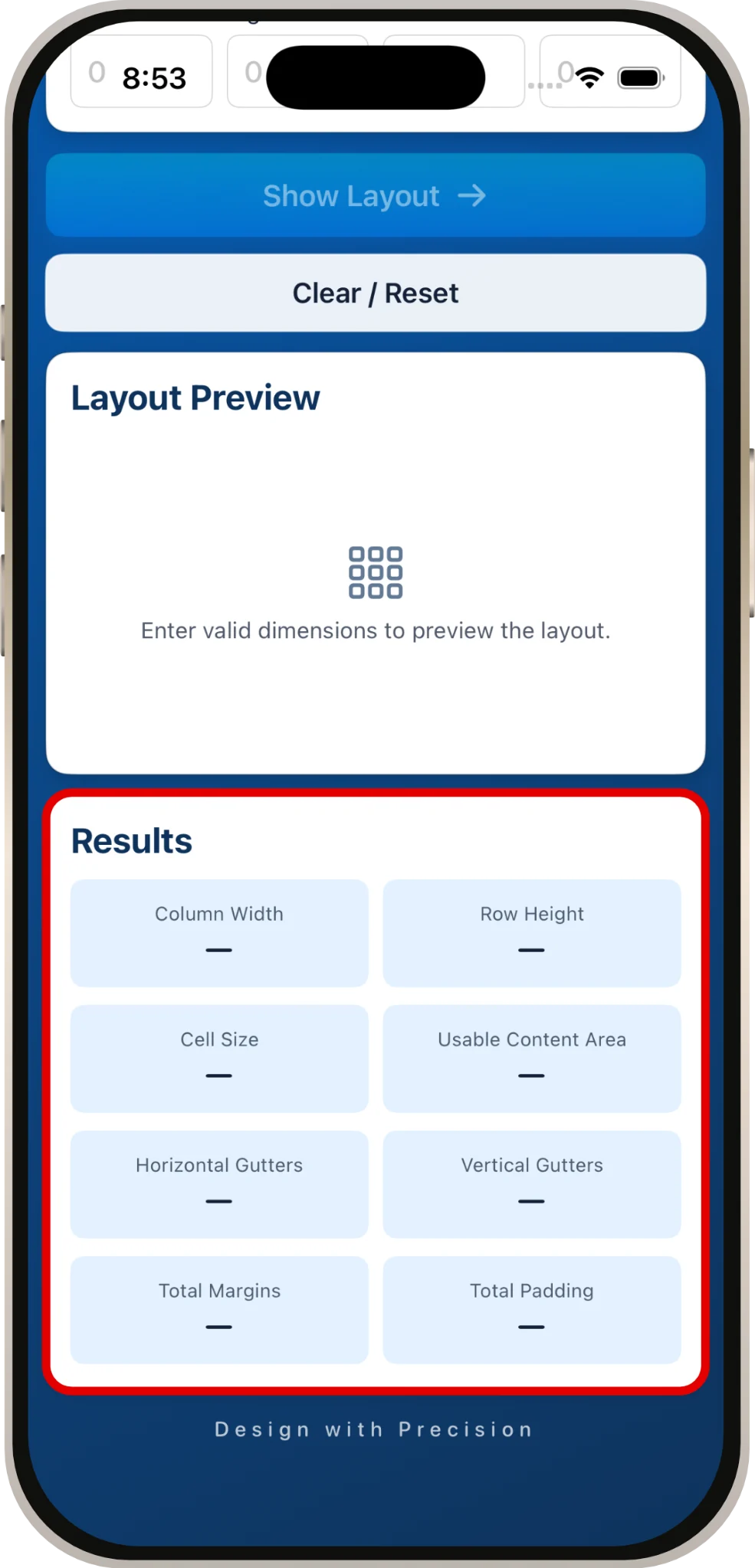
Results
The Results section summarizes the calculated geometry, including column width, row height, overall cell size, usable content area, total gutters, total margins and total padding.
Example Layout
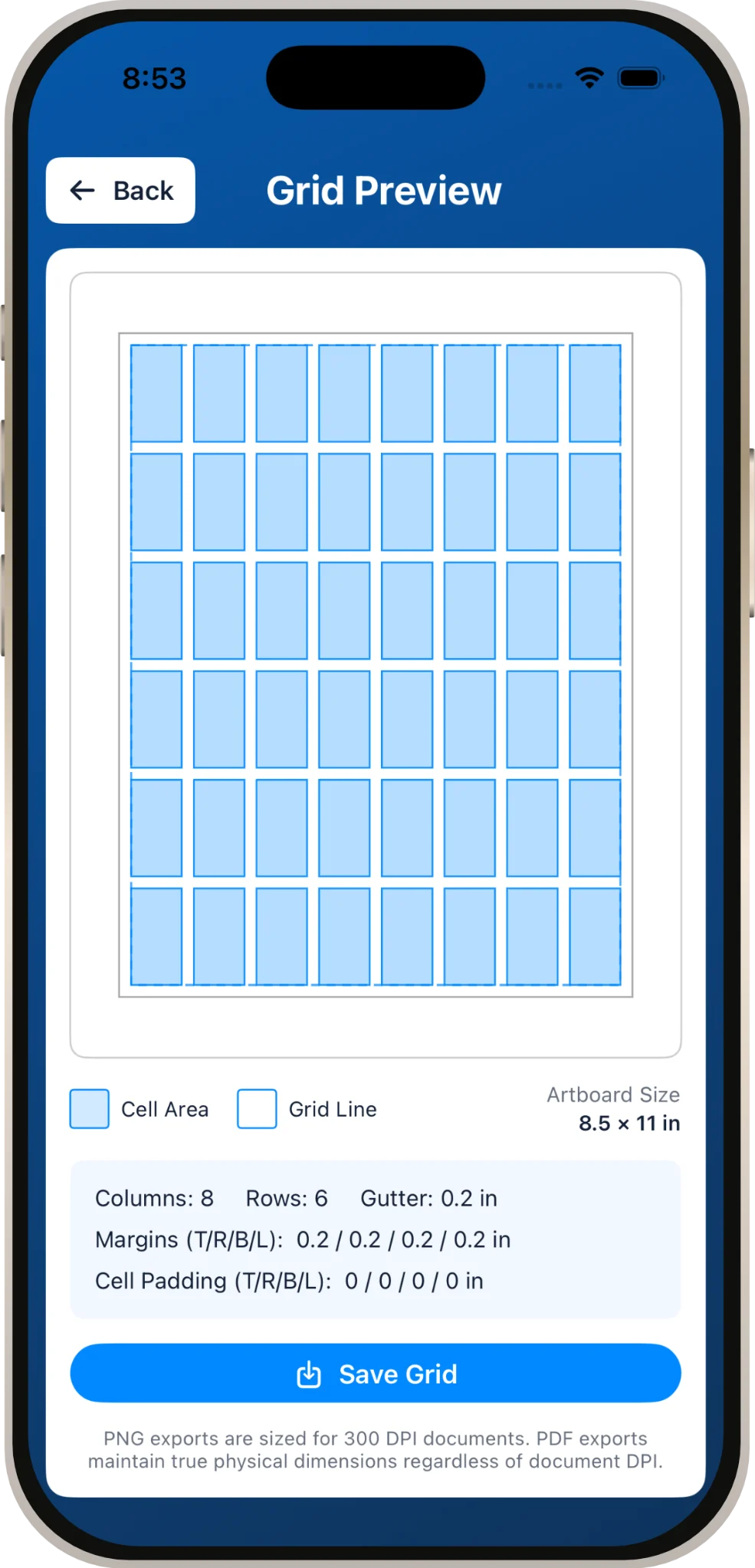
These three screens show a complete example from input to finished preview. The example uses an 8.5 × 11 inch artboard with 8 columns, 6 rows, a 0.2 inch gutter and linked 0.2 inch margins. Cell Padding is left at zero.
Saving / Exporting the Grid
Open the detailed Grid Preview and tap Save Grid. For inch and millimeter layouts, the app can export a 300-DPI PNG or a true-size PDF. Pixel layouts export as an exact-pixel PNG.
The exported grid contains the layout itself rather than the surrounding app interface, making it a handy template, ready to bring into your design workflow.
Clear / Reset
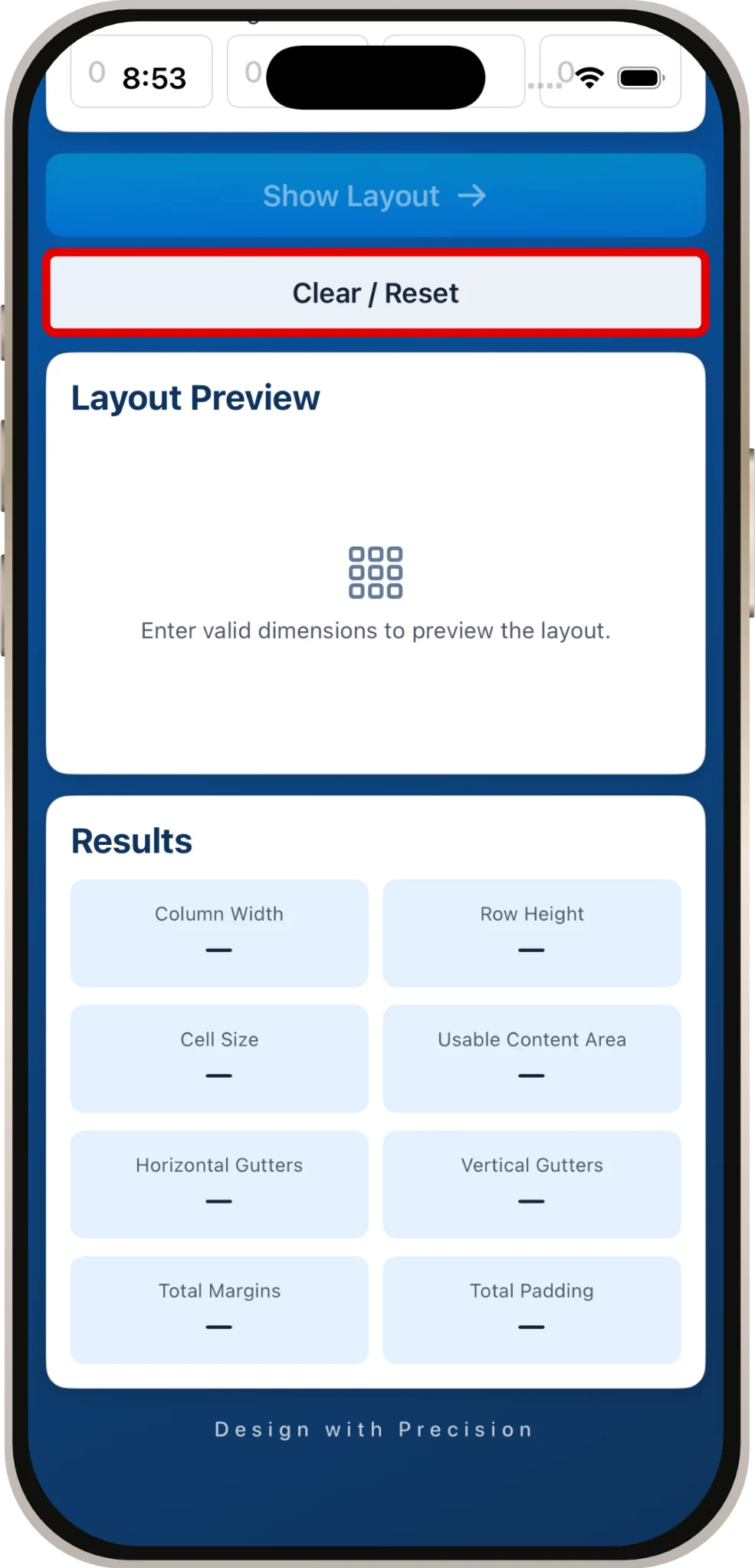
Clear / Reset clears entered values and returns the fields to their example placeholders. Blank margin and padding fields are treated as zero.
Tips
- Use linked margins or padding when all four sides should match.
- Switch units before entering a new layout so the field examples match your working units.
- Columns and Rows use whole numbers.
- For exact pixel artwork, use Pixel mode and the exact-pixel PNG export.